Written in Rust · GPL-3.0 · works on the vault you already have

Your Obsidian vault, at home in the terminal.

Same folder. Same notes. Same [[links]]. Read, write and wander through them without leaving the terminal, and keep Obsidian open on the other screen while you do.

Other ways to install

Rather use brew or cargo? Both are two lines down.

A recording of the app

Half a minute in a real terminal. Nothing sped up, nothing cut.

emeraldian ~/demo-vault
The file tree, a note in live preview, Ctrl+K for backlinks, the graph settling under Ctrl+G, an Excalidraw drawing, a picture in the reading pane, and two of the eighteen themes.

A look at the app

The same layout, drawn live. Try a theme:

emeraldian ~/Notes

Eighteen themes ship with it, including Obsidian's own light and dark, and a terminal theme that simply inherits whatever palette you've already spent years tuning. Drop a TOML file next to your config to add one more.

Nothing to migrate

Point it at a folder of Markdown files and it just works. No import step, no sidecar database, no proprietary format waiting to trap you.

Nothing to fight over

Obsidian can stay open on the same vault at the same time. Edit here, edit there; they're the same files on the same disk.

Nothing phoning home

No telemetry, no analytics, not even an update check. Unless you turn the assistant on, it never opens a socket.

What's inside

Everything you reach for, where your hands already are.

Markdown that still looks like Markdown

Live preview in Obsidian's dialect: [[wikilinks]] that dim when they don't resolve yet, #tags, - [ ] tasks, > [!note] callouts, tables, and fenced code with syntax highlighting. Frontmatter is optional: a stray .md file you dragged in from somewhere else shows up like everything else. The editor styles that same dialect as you type it, and wraps a long line rather than running it off the edge. Nothing is hidden while you write: every glyph is exactly as wide as the character it stands for, so the cursor is always on the character it looks like it's on.

Pictures, and drawings, in a terminal

![[chart.png]] and ![alt](assets/chart.png) are drawn in the reading pane: real pixels in Kitty, Ghostty, WezTerm, iTerm2 and anything that speaks sixel, half-block mosaics everywhere else. Obsidian's |400 width works. Decoding happens off the draw loop, and the space a picture needs is worked out before it is decoded, so nothing jumps as it appears; one that can't be drawn leaves its alt text where it was. An .excalidraw.md note opens as the drawing rather than the wall of compressed base64 it is stored as, with shapes, arrows, freehand strokes and labels drawn as vectors on a braille canvas, so a diagram reads the same in every terminal, whether or not it can show pictures at all. Pictures can be turned off, capped to a share of the pane, or pinned to one protocol when a terminal misreports what it can draw, under [images].

Links that point both ways

A backlinks pane showing the exact line each link sits on, an outline, and a tag browser. Follow a link to a note that doesn't exist and it gets written for you. Rename a note and every wikilink pointing at it is rewritten too.

A graph that earns its screen

Force-directed with Barnes-Hut repulsion, so it stays smooth on a big vault and stops burning CPU the moment it settles. Notes that are only linked to show up hollow, usually the most useful thing on screen, because those are the notes you meant to write. Ctrl+G draws the whole vault; Ctrl+Shift+G narrows it to the note you're on and its neighbourhood, laid out on its own rather than as the full graph with the rest switched off.

Eighteen themes, then yours

Obsidian's own light and dark, Catppuccin, Tokyo Night, Gruvbox, Nord, Solarized, Dracula, Rosé Pine, Everforest, plus a terminal theme that just uses your palette. Your own theme is a TOML file; anything you leave unset is inherited from whatever it extends.

An assistant that shows its work

Optional, and silent until you give it a key. A chat panel that acts on the vault through the very same commands you use. It can search, read, create, edit, rename, link and delete notes, and put one on your screen. Every tool call appears in the transcript, so you're reading what it actually did rather than trusting a summary of it. Type / for slash commands that never reach the model: /model switches backend, /save and /resume keep a conversation for tomorrow, /compact buys back context. Bring an Anthropic key, point it at Ollama on localhost, or leave it switched off entirely; nothing else in the app depends on it.

Each of those, on screen

And here is each of those doing its job: the layout, backlinks, the graph, a drawing, a picture, a theme. Every frame comes straight out of the recording above, so open any of them for the full-size capture.

Welcome.md
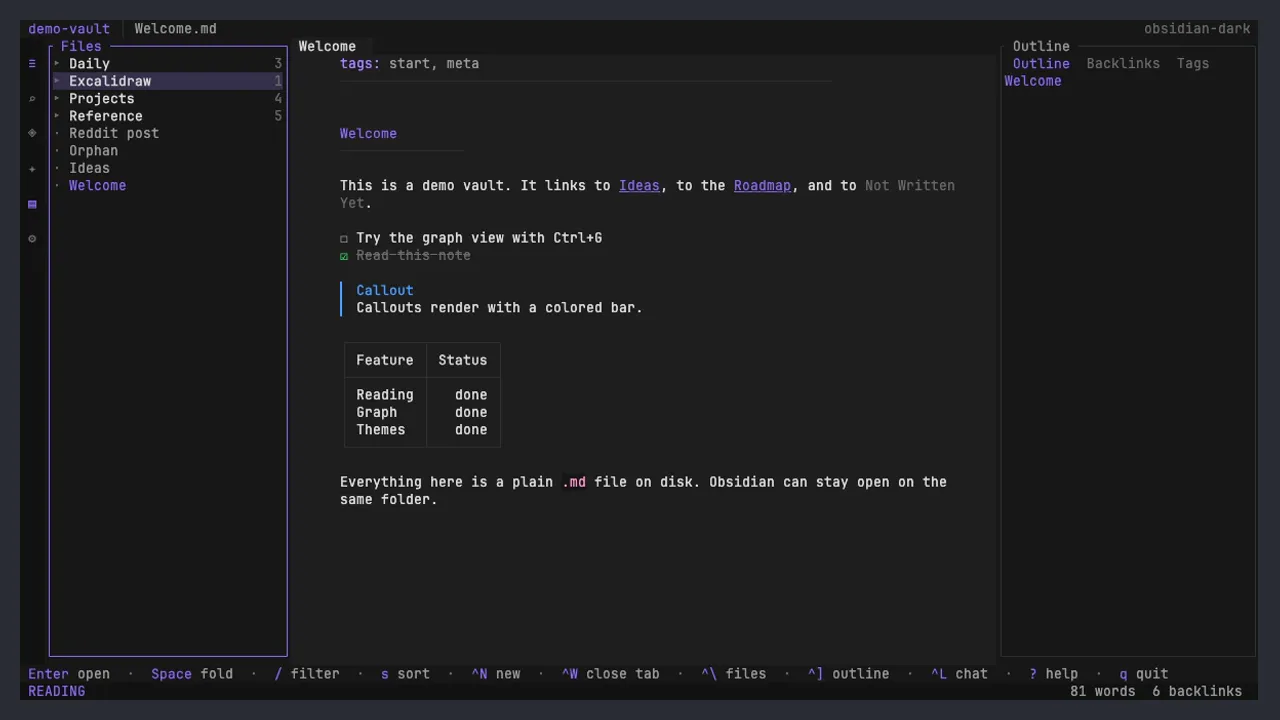
The three-pane layout in the obsidian-dark theme: an icon ribbon and file explorer on the left, a note called Welcome in the middle showing tags, a task list, a callout with a coloured bar and a bordered table, and an outline panel on the right.
The layout you already know. Files on the left, the note in the middle, its outline on the right. Markdown is rendered where it sits: tags, tasks, callouts and tables. You read a note instead of reading its syntax.
Projects/Roadmap.md
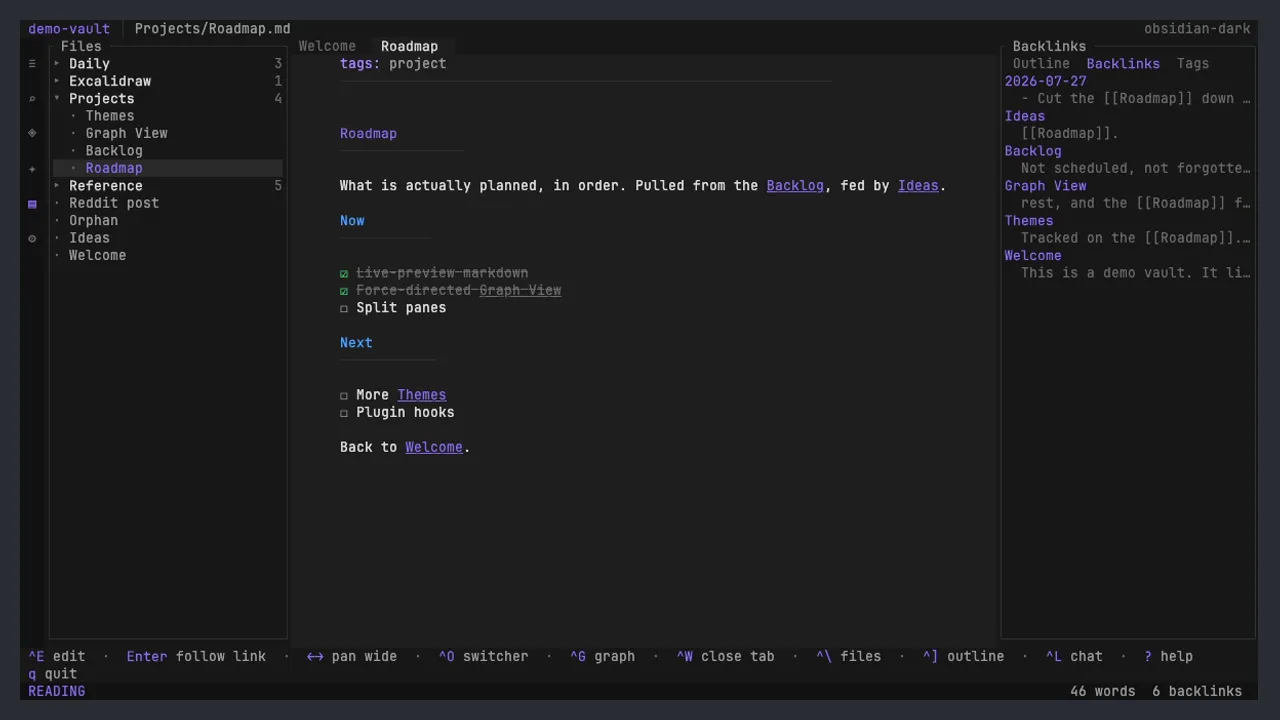
The Roadmap note open, with the right-hand panel switched to Backlinks, listing six notes that link to it along with the line of context each link sits in.
Backlinks, with the line they sit on. Every note pointing here, each showing the sentence the link appears in, which is enough to tell a passing mention from the note that actually matters. Ctrl+K cycles the panel through outline, backlinks and tags.
graph
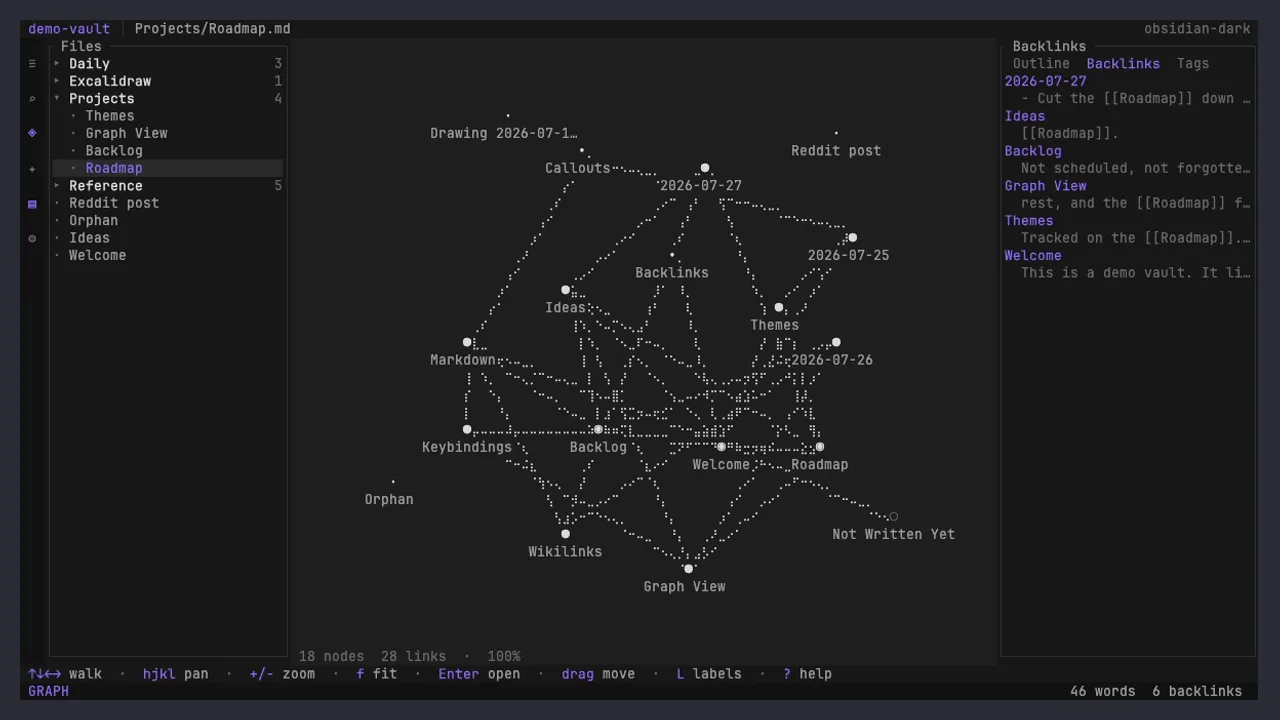
The force-directed graph view filling the centre pane, with labelled note clusters, a lone unconnected note called Orphan off to one side, and a status line reading eighteen nodes and twenty-eight links.
The whole vault, as a shape. A force-directed graph that settles as you watch, drawn in text. Ctrl+G for everything, Ctrl+Shift+G for the neighbourhood around one note, f to fit it on screen. Notes nothing links to sit off on their own, where you'll finally notice them.
Excalidraw/Drawing 2026-07-17.excalidraw.md
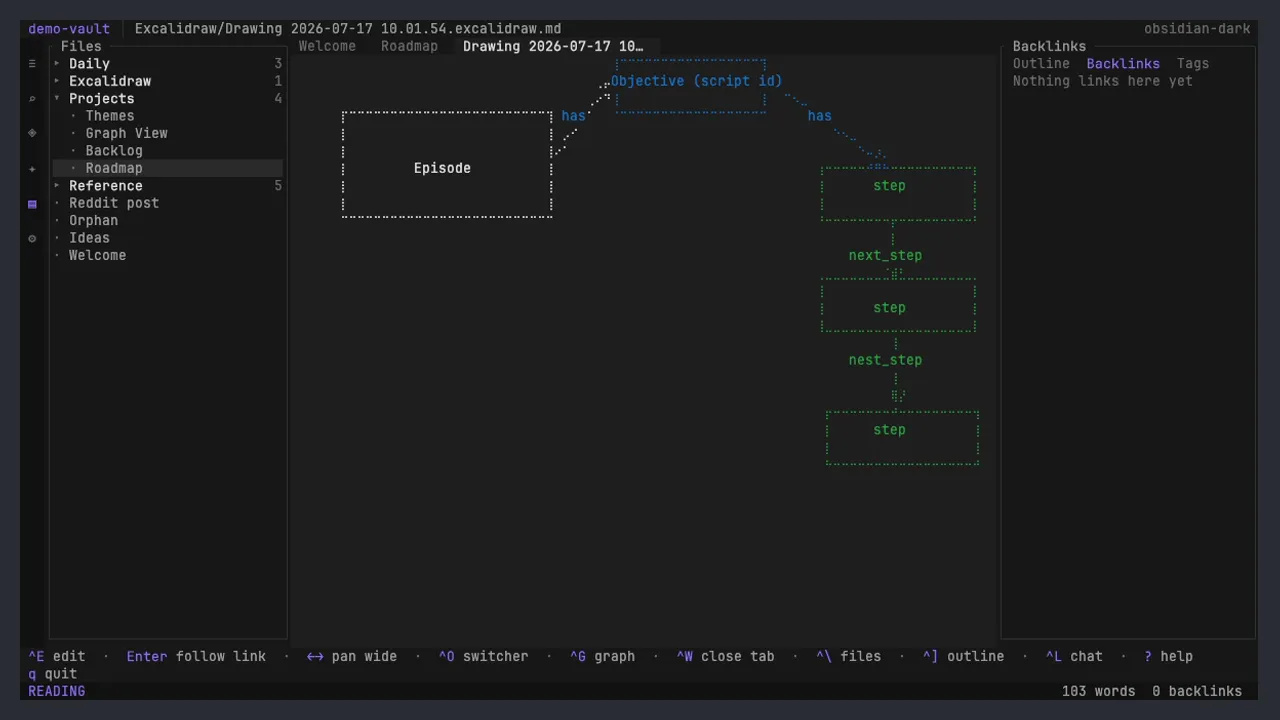
An Excalidraw note open as a drawing rather than as its Markdown: labelled boxes reading Episode, Objective and three steps, joined by dotted arrows drawn with braille characters, in white, blue and green.
Excalidraw opens as the drawing. On disk that note is a wall of compressed base64; every other terminal reader shows you exactly that. Here you get the scene: boxes, arrows, freehand strokes and labels drawn as vectors, scaled to the pane, and legible even in a terminal that can't show a single pixel.
Reddit post.md
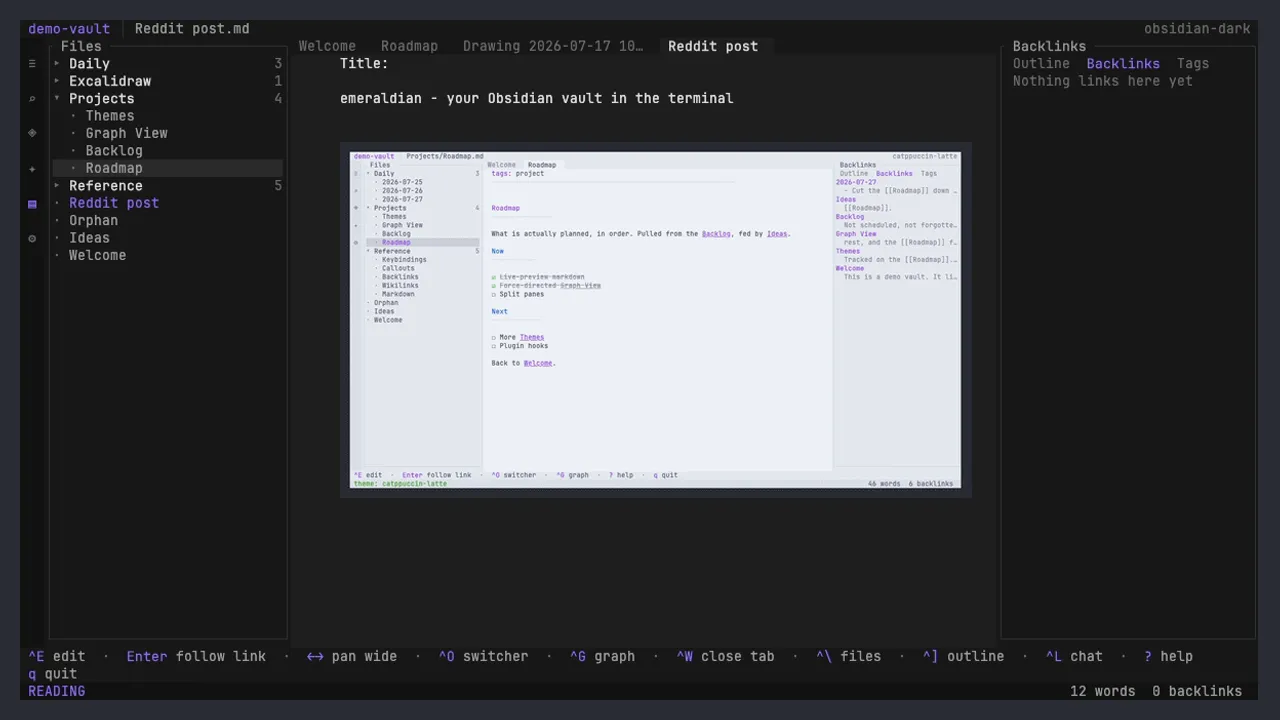
A note called Reddit post open in the obsidian-dark theme, with a screenshot of Emeraldian itself embedded partway down the note and drawn as actual pixels in the reading pane, sharp enough to read the note text inside it.
Pictures, drawn in place. ![[chart.png]] appears where you put it, at the width the pane allows. Real pixels in Kitty, Ghostty, WezTerm, iTerm2 or anything speaking sixel, and a half-block mosaic where none of those exist. The screenshot embedded above is sharp enough to read the note inside it.
Reddit post.md
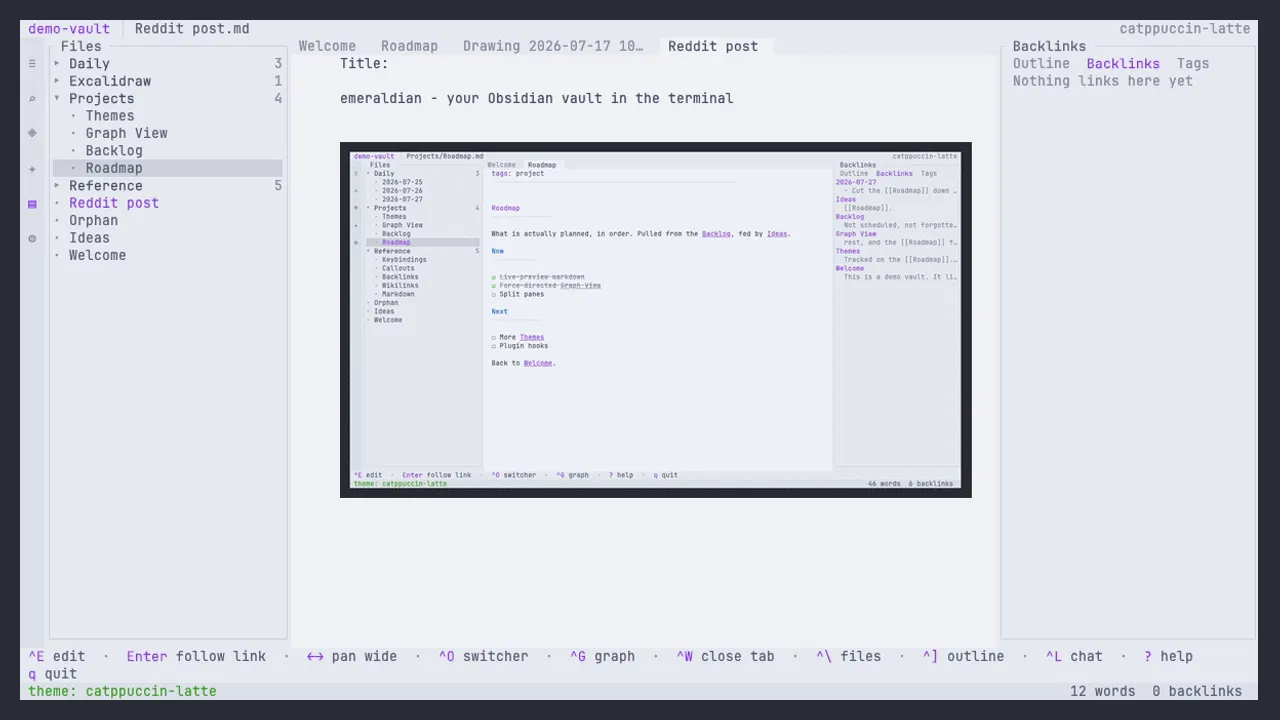
The Reddit post note and its embedded screenshot rendered in the light Catppuccin Latte theme, with a cream background and violet accents.
Eighteen themes, light ones included. catppuccin-latte here, picked from Ctrl+T by typing a few letters of its name. Everything recolours at once: panes, syntax, the graph, even the picture's surroundings.

Ctrl+G

The notes you meant to write, made visible.

Every vault accumulates them: a link you typed in a hurry to a note you never got around to. In the graph they're the hollow circles, pulled into place by everything that points at them, waiting for you.

Ctrl+Shift+G narrows it down to just the neighbourhood of the note you have open, which is usually the question you were actually asking.

written linked, not written yet

Privacy, in plain words

Your notes are the most personal thing on your machine.
We treat them that way.

Emeraldian makes no network connections at all unless you use the assistant. Only one crate in the whole workspace has an HTTP dependency: the vault, the editor and the graph physically cannot reach the network.

If you do send a message, this is what leaves

  • the message you typed
  • the note you have open, if include_active_note is on
  • whatever notes the assistant reads with its tools while answering

That's the entire list. It goes to the provider you configured, under that provider's terms, and nothing is ever sent in the background.

If you'd rather it never leaves at all

[agent]
provider = "openai"
base_url = "http://localhost:11434/v1"
model = "llama3.1"

Ollama, LM Studio, vLLM: anything OpenAI-shaped. Or set provider = "offline" and the assistant simply isn't there.

Your API key is read from the environment and is never written to the config file, never logged, and never included in an error message. Set allow_writes = false to leave the assistant with search and read only.

Muscle memory

Obsidian's shortcuts where it has them. The terminal's where it doesn't.

Nothing new to learn on day one. A hint bar above the status line shows the keys that apply to wherever you're standing, and ? opens the full list. When it starts feeling like training wheels, turn it off from the command palette.

CtrlOQuick switcher
CtrlPCommand palette
CtrlShiftFSearch every note
CtrlEReading ↔ editing
CtrlN / CtrlSNew note / save
CtrlDToday's daily note
CtrlGGraph (add Shift for the local one)
CtrlLAssistant panel
Tab / ShiftTabMove between panes
hjklMove within one; arrows work too
EnterOpen, or follow a link
AltBack to the previous note
?Every shortcut, grouped
qQuit, and it asks first

q is careful about where it quits from. Anywhere you might be typing (the editor, the chat box, a search field), it stays an ordinary letter, and CtrlQ is the way out instead.

In the graph the keys are its own: hjkl pans, + and - zoom, f fits the whole thing on screen, Tab steps between nodes, c recentres on the one you've picked, and L, u and t toggle labels, unresolved links and tags.

And if you'd rather point at things: the ribbon icons are buttons, notes and folders and tabs are clickable, graph nodes select, and the scroll wheel scrolls whichever pane is under your pointer, not the focused one.

Two minutes, tops

Pick whichever one you already trust.

macOS and Linux. Works out which build fits your machine, downloads it and checks it against its published checksum before anything moves. OTUI_BIN_DIR chooses where it lands; OTUI_VERSION pins a release. Piping a script into a shell is worth a read first; here it is in full.

Then point it at something

emeraldian ~/Notes           # a specific vault
emeraldian                   # whatever Obsidian had open last
emeraldian --list-vaults     # everything Obsidian knows about

It also answers to the obsidian:// URIs the desktop app registers, so a link or a script that opens Obsidian opens this too: emeraldian 'obsidian://open?vault=Notes&file=Ideas'. And for the days you don't want a UI at all: emeraldian ~/Notes --prompt "which notes mention the Q3 migration?"

Prebuilt for Apple silicon, Linux x86_64 and aarch64, and Windows x86_64.

Reasonable worries

The things you'd want to ask first.

Is this going to do something to my vault?

It reads a plain folder of Markdown files: no import, no database, no lock-in. It writes when you ask it to: saving a note, creating one by following a link that didn't resolve, or renaming one, which also rewrites the wikilinks pointing at it. Nothing happens behind your back.

Can I keep Obsidian open while I use it?

Yes, and that's the point. It's the same folder on the same disk, and both apps are happy to be in it at once. Use whichever one suits the moment.

Obsidian ships its own CLI now. Why this?

They do different jobs. Obsidian's official CLI is a remote control for the desktop app: it gives you commands, not an interface, and every one of them runs against a full Obsidian instance, which it launches if you haven't. emeraldian is the interface, reading the vault's files directly, so it starts in a second on a box with no display at all. They get along: when the obsidian binary is on your PATH, /obsidian open (or "Open this note in Obsidian" in the command palette) hands the note you're reading to the desktop app for the one thing only it can do. If the CLI isn't enabled, emeraldian says so and carries on.

Do I need an API key?

Only if you want the assistant. Without one the panel still opens and explains how to set it up, and every other part of the app carries on exactly as before. Set ANTHROPIC_API_KEY (or OPENAI_API_KEY) and restart.

Can the AI run entirely on my own machine?

Yes. Set provider = "openai" with a base_url pointing at Ollama, LM Studio, vLLM or anything else that speaks the OpenAI shape, and nothing leaves your laptop.

What about my Obsidian plugins and themes?

Plugins are Obsidian's, and they stay there; this reads the files underneath, so anything a plugin wrote is just text you can see. Themes are separate: eighteen ship with the app, and you can write your own in TOML, borrowing from any of them.

Which platforms?

Binaries are published for Apple silicon, Linux x86_64 and aarch64, and Windows x86_64. Intel Macs build from source with cargo. Config lands in the usual place for your OS on first run, with every default spelled out so you can see what you're changing.

Your notes are already on your machine.

Now you don't have to leave the terminal to think in them.

Star on GitHub

A star is how a project like this gets found, and it costs you nothing. Or just read the source first.